
Vid QuikTools
Drag-and-drop video utilities for AI video work. Free, local, Windows.
Vid QuikTools is a small always-on-top window with seven drop zones. Drag a clip onto a zone and the result lands right next to the original file: no dialogs, no cloud, no telemetry, no account. It handles the little chores around AI video work: grabbing seed frames, retiming clips, splitting footage into shots, joining takes.
Download Vid QuikTools
Version 1.0.0 · Windows installer · about 195 MB
Windows. Built and tested on Windows 11.
The installer is not code-signed yet, so Windows SmartScreen may warn on first run: click More info, then Run anyway.
Release notes and checksum on GitHub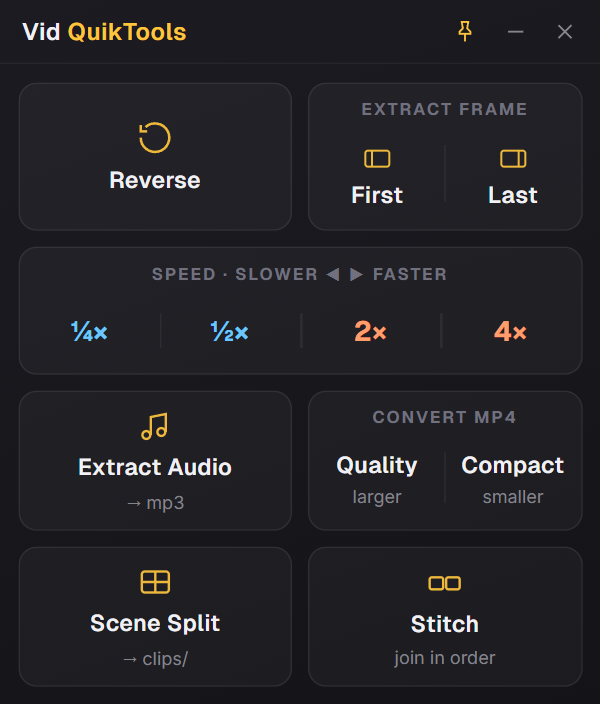
The seven zones
- Reverse
- Plays the clip backwards, video and audio.
- Extract Frame
- First or last frame to PNG. Split zone: hover the half you want.
- Speed
- Four cells: 0.25x and 0.5x slower, 2x and 4x faster.
- Extract Audio
- Pulls the audio track out to MP3.
- Convert MP4
- Universal H.264. Split zone: Quality (bigger file) or Compact (smaller file).
- Scene Split
- Auto-cuts at hard cuts; the shots land in a
<name>_scenesfolder next to the source. - Stitch
- Drop two or more clips; joins them in filename order.
Good to know
- Output saves next to the source and never overwrites. Name collisions auto-number (
_1,_2). - Drop several files and it batches them, with a counter (like
2 / 5) tracking progress. - Pin keeps the window above whatever you are working in.
- Click the checkmark after a job to open the output folder.